

I. Creating and Configuring the Application
-
Create an Enterprise Self-built Application
- Log in to Feishu Developer Console
- Click “Create Enterprise Self-built Application”, enter the application name “MyCoder” and description, then complete creation
-
Add Bot Capability
- In the application details page under Application Capabilities > Add Application Capability, find the Bot card and click Add
- Refer to Bot Capability documentation to complete basic configuration
-
Apply for API Permissions
- On the Development Configuration > Permission Management page, enable the following permissions for the application:
im:message.p2p_msg:readonly(Read single-chat messages from users to the bot)im:message.group_at_msg:readonly(Receive @bot message events in group chats)im:message:send_as_bot(Send messages as the application)contact:contact.base:readonly(Get basic contact information)contact:user.base:readonly(Get basic user information from contacts)
- On the Development Configuration > Permission Management page, enable the following permissions for the application:
-
Subscribe to Message Receiving Events
- On the Events and Callbacks > Event Configuration page:
- Select Send events to developer server (currently only this method is supported) and enter the
Webhook URLcreated when setting up the application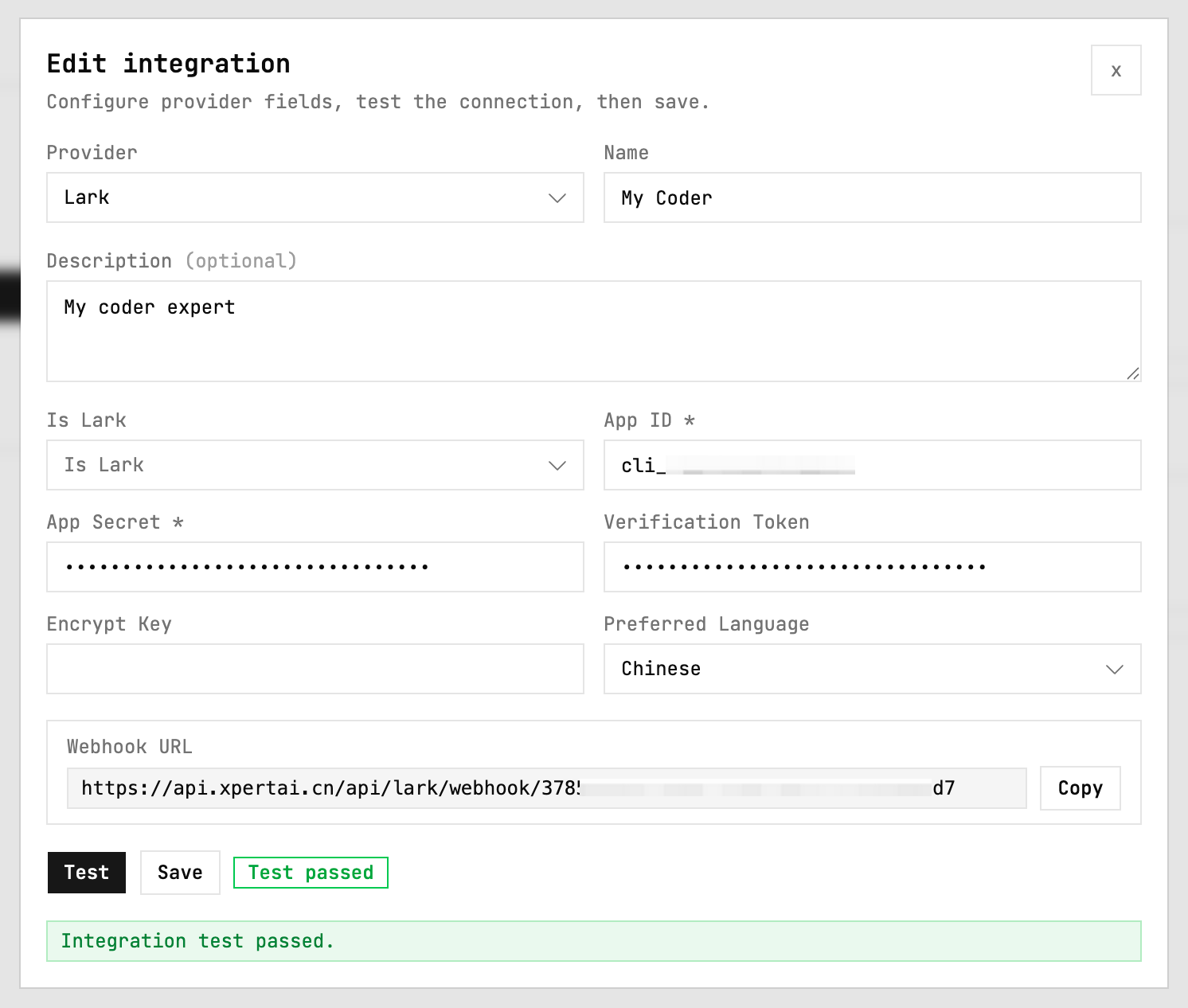
- Add Receive Message Events (
im.message.receive_v1)
- Select Send events to developer server (currently only this method is supported) and enter the
- On the Events and Callbacks > Callback Configuration page, enter the
Webhook URL:- Enable subscription method: Send callbacks to developer server
- Add callback Card interaction passthrough (
card.action.trigger)
- On the Events and Callbacks > Event Configuration page:
II. Publishing the Application
-
Configure Availability Scope
- Create a version on the Application Publishing > Version Management and Publishing page
- Set the application availability scope (e.g., specify departments or visible to all), refer to Configure Application Availability Scope
-
Publish and Go Live
- Submit the version for review and wait for enterprise admin approval
- Testing environment can use Testing Enterprise Features for publication without review
III. Configuring Notification Users
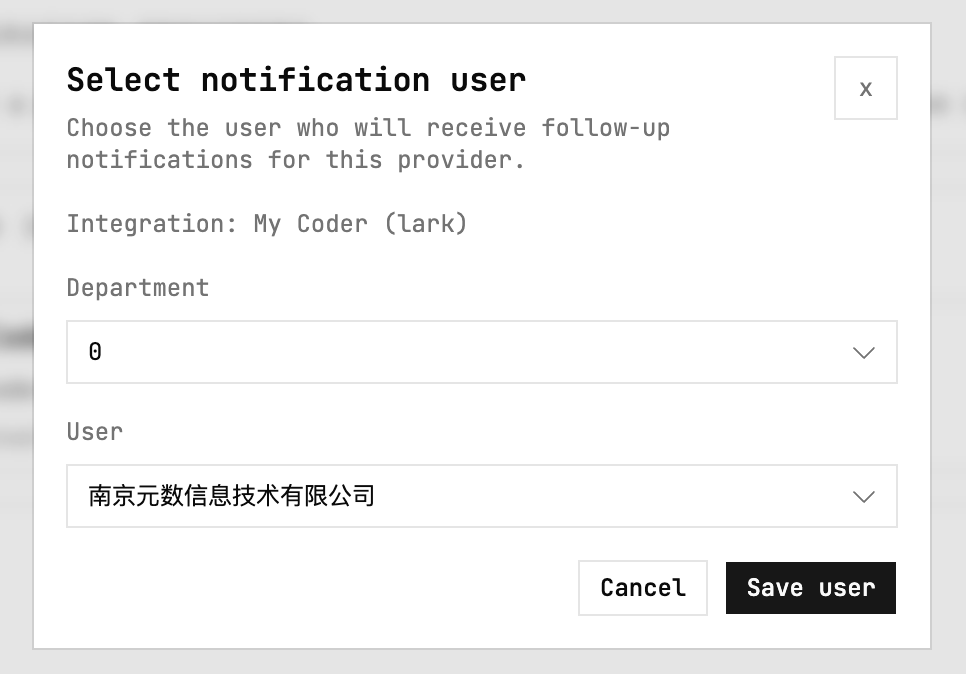
When tasks run automatically in the backend and need to notify users, you can edit notification users on the integration provider page, select the users to notify, and save.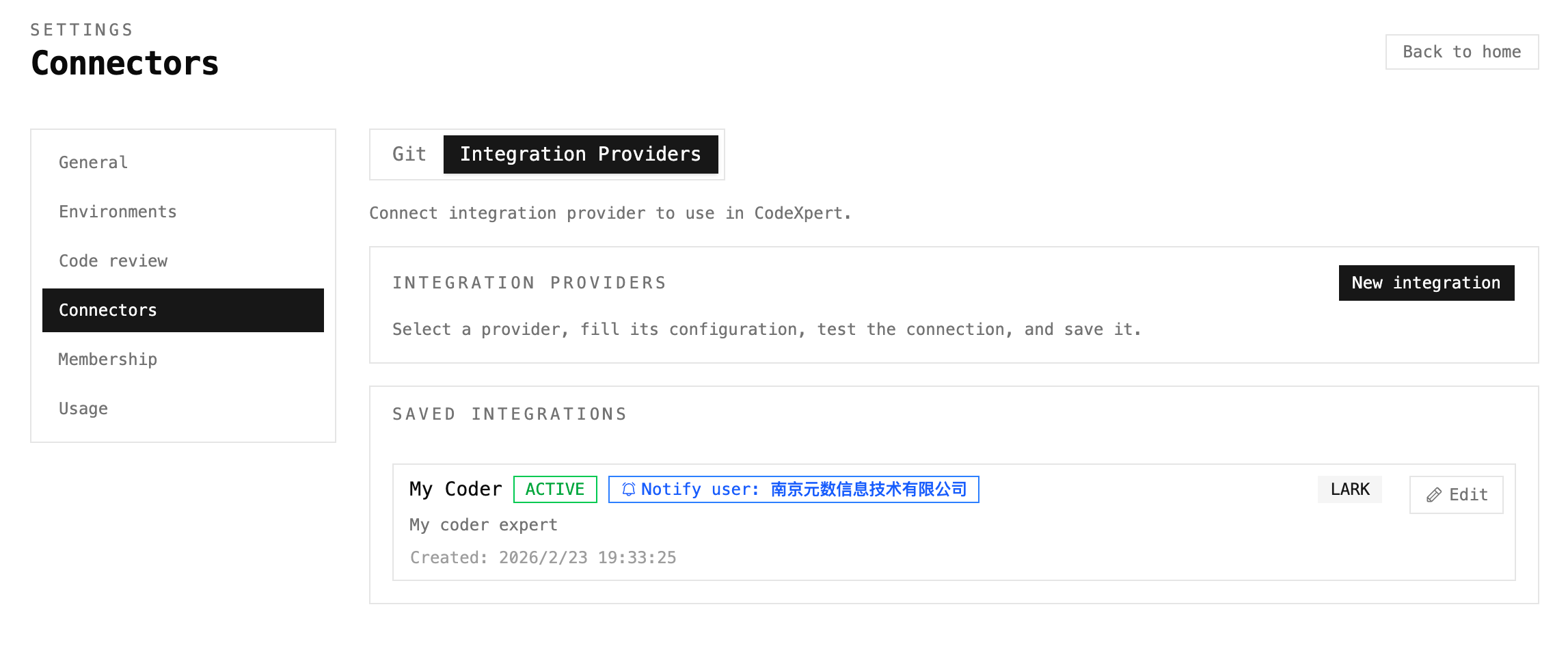
IV. Testing the Bot
-
Add Bot to Group Chat
- Search for “MyCoder” bot in the Feishu client group settings and add it
-
Run Coding or Review Tasks
- Trigger backend automatic coding or review tasks to ensure the Feishu integration can send notification messages to users
-
Reply to Notification Messages
- Single chat: Reply directly to the notification message from the bot
- Group chat: @mention the bot and send a message to verify the reply functionality
Key Documentation References
- Bot Overview
- Send Message API
- Reply Message API
- Event Subscription Process
- Configure Application Availability Scope