The Indicator Registration page is a functional page used to register individual new indicators or to bulk upload indicator definitions. Below are the main contents and functions of this page:
- Basic Information: Basic information about the indicator, such as indicator name, description, unit, etc. These information are the basic attributes of the indicator, used to help users better understand and use the indicator.
- Model Information: Model information related to the indicator, such as model name, model entity, dimensions, and measures, etc.
Creating Business Domains
In the management of indicators, whether through business domains, product lines, or departments for classification and management of indicators, an organizational structure is needed to manage indicators of different attribute categories. We manage indicators by grouping them under business domains.
Refer to Business Domain Management
- First, open the Business Domain page, click on “Create Business Domain,” and enter a name such as Finance.
- Click the add button on the Finance row to continue adding child business domains, such as Management Reports.
- Continue adding sub-sections of Management Reports: Core Indicators, Revenue Indicators, Profit and Loss Indicators, etc.
Registering Indicators
Next, create specific indicators.
Unique CodeIndicator codes are only limited to uniqueness within the semantic model’s multidimensional dataset; there are no restrictions at the business domain or global level, and users regulate them themselves.
- Open the indicator registration page and enter the following indicator information:
- Submit to save.
- Download Template: You can download a template file for bulk upload, fill in indicator information in bulk, and then upload the file for bulk entry of indicators.
- Bulk Upload: Upload a template file format of the indicator file for bulk entry of indicators.
After registration, you can view the indicators on the My Indicators page.
Preview
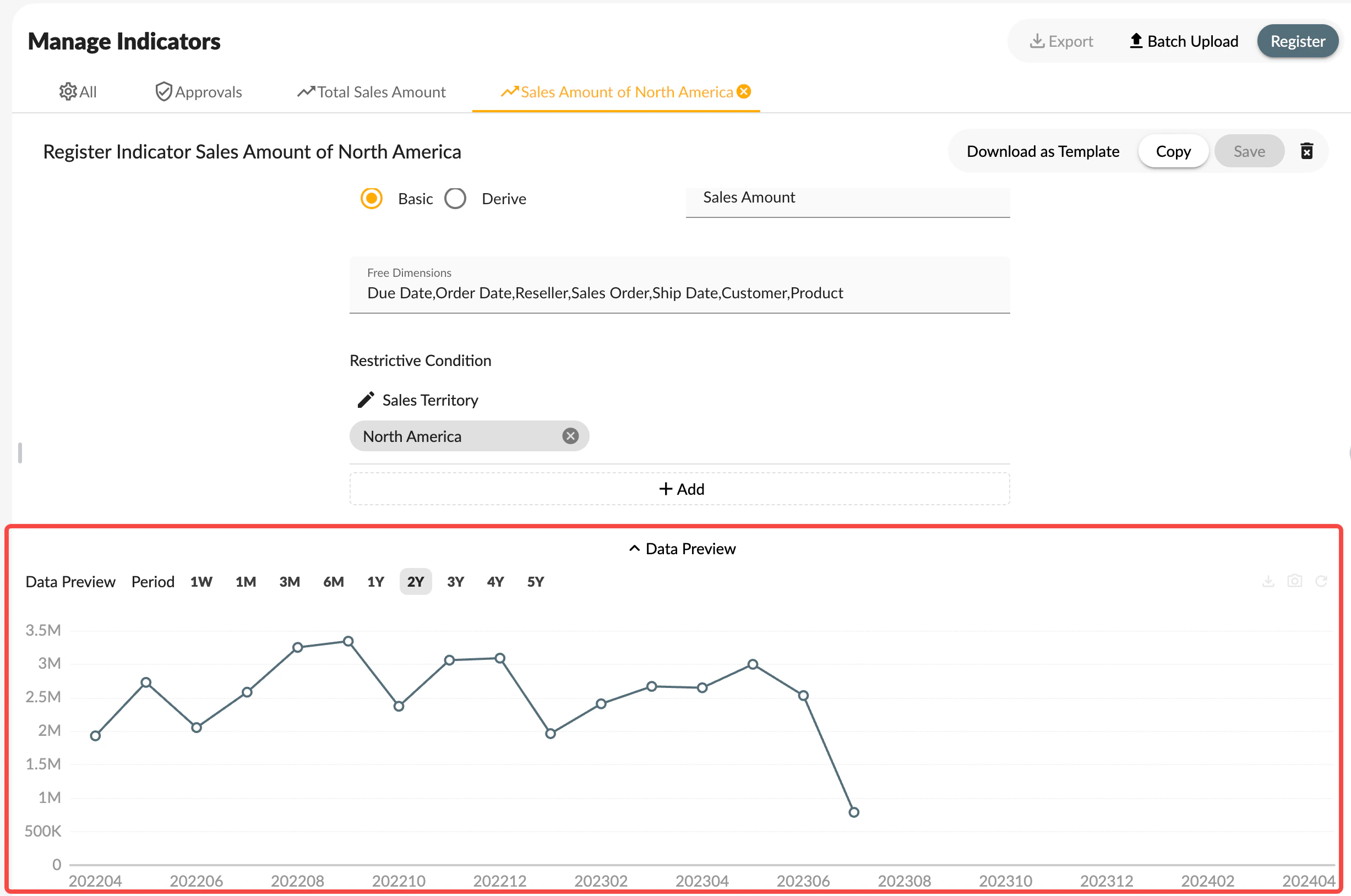
On the indicator registration page, you can preview the data trends of indicators in real-time, so that users can better understand the source and trends of indicator data when entering indicators. After completing the indicator registration, click the Data Preview button to view the data trends of the indicator.
Bulk Upload
For initial indicator entry or bulk indicator creation, you can use the bulk upload feature.
First, download the model file for bulk uploading indicator data. To facilitate manual organization of indicator data, you can download data similar to a particular indicator, then modify it by copying, open an existing indicator, or enter a new one, then click the Download Template button to download the current indicator data as a template. After organizing the indicator data, click the Bulk Upload button to upload.
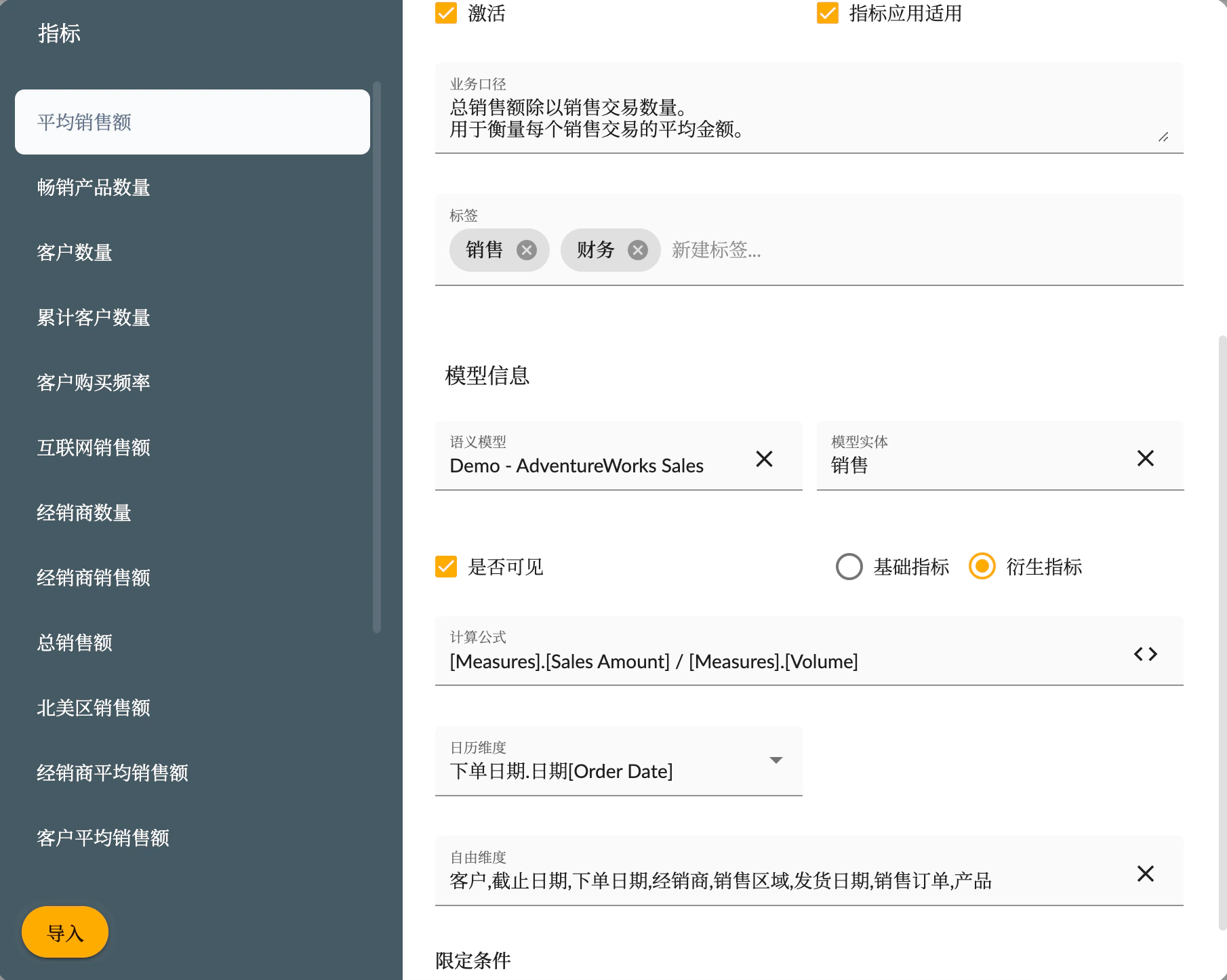
As shown in the figure below, during bulk import, users can modify the attribute configuration of indicators one by one, and then click the “Import” button to complete the bulk import of indicators.
 Below is a YAML format template for an indicator:

