Step 1. Get the XMLA service address of the SAP BW system
To find the XMLA service address of the SAP BW system, you can run the function moduleRSBB_URL_PREFIX_GET through the program SE37 and enter the following parameters:
- I_HANDLERCLASS =
CL_RSR_MDX_SOAP_HANDLER - I_PROTOCOL =
HTTPorHTTPS - I_MESSAGESERVER =
- E_URL_PREFIX =
https://[domain]:[port] - E_URL_PATH =
/sap/bw/xml/soap/xmla - E_URL_PROTOCOL =
httporhttps - E_URL_SERVER =
[domain] - E_URL_PORT =
[port] - E_SUBRC =
0
Check service availability
Access the address[https | http]://[domain]:[port]/sap/bw/xml/soap/xmla?sap-client=[sap-client] to see if the WSDL content of the XMLA service can be correctly returned.
If you cannot access it, please check the following possibilities:
- Check and enable the XMLA service of the SAP BW system: Open the SAP Client GUI to log in to the system,
TCODE: SICF > default_host > sap > bw, right-click to activate the corresponding service node. - Check whether the information such as protocol, port and client number corresponds and is correct;
- Ask the SAP system administrator whether your account has the corresponding permissions;
Step 2. Create a SAP BW data source
- Go to the data source configuration page, click New
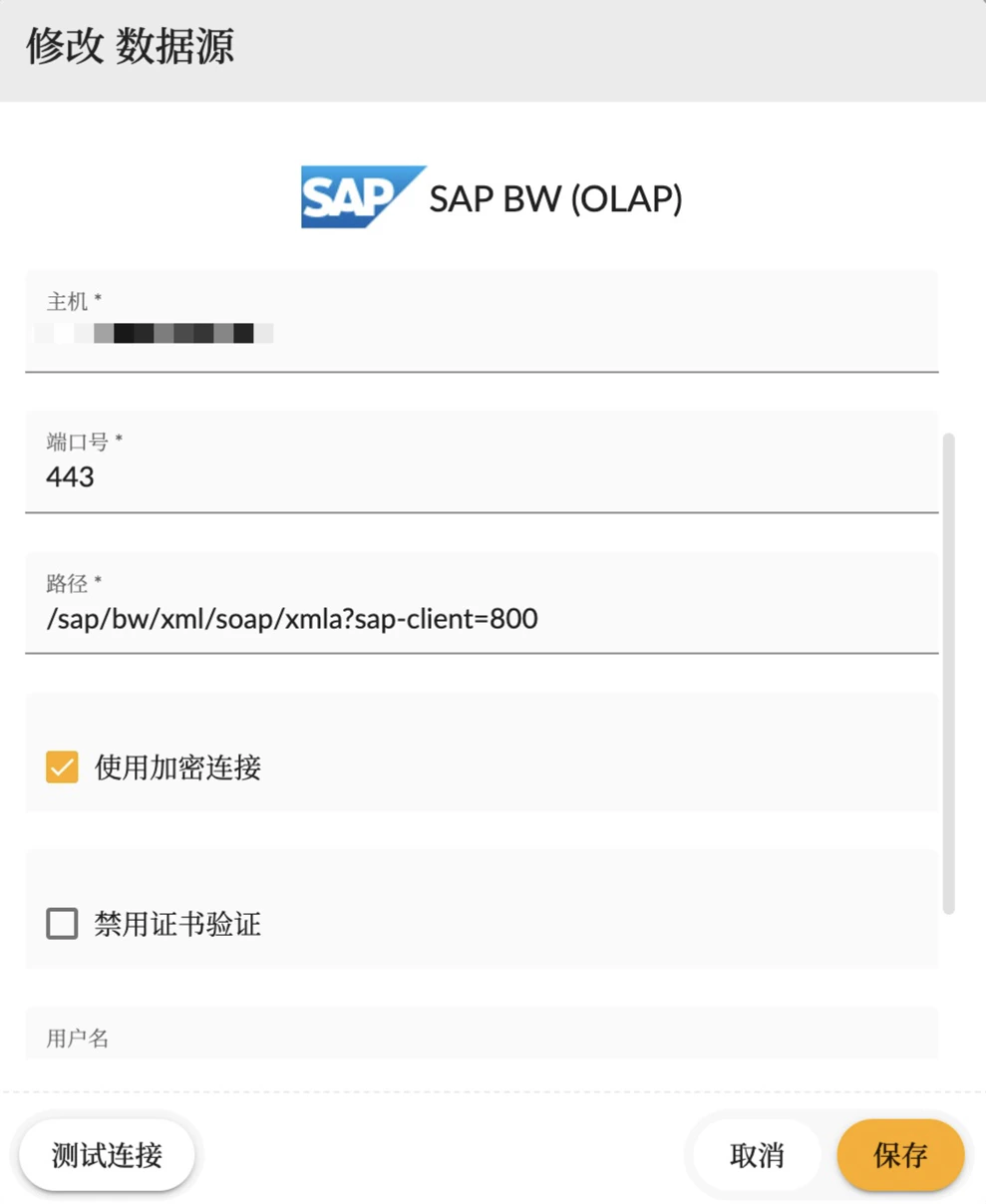
- Select SAP BW (OLAP) Type
- Enter the following information (corresponding to the information in step 1.):
Click Create or Save.
Step 3. Test and use SAP BW data source
If you have enabled the use of local agent, you need to refer to Local Agent to download and run the local agent service.BW Objects
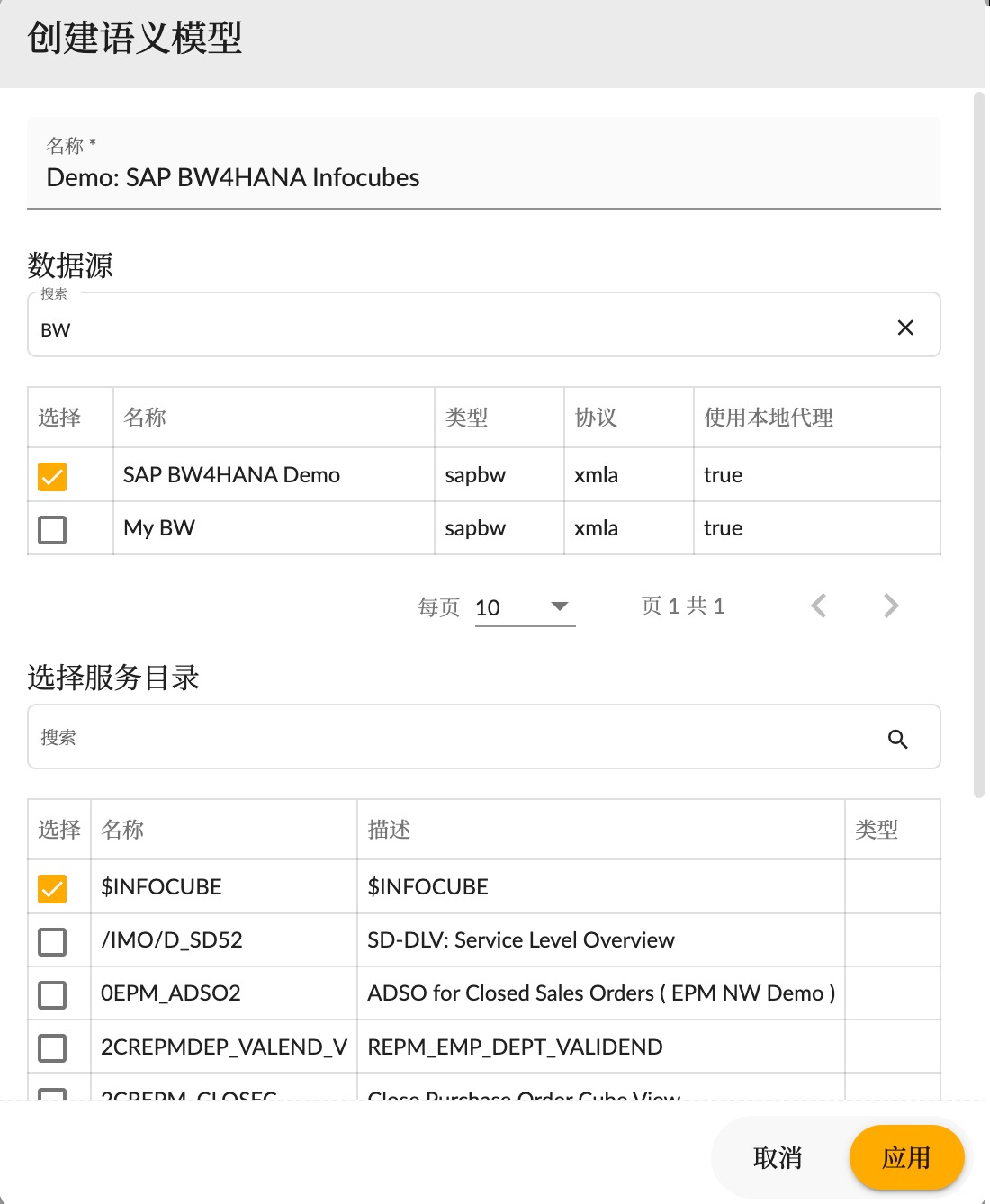
After connecting to the SAP BW data source, the Create Semantic Model dialog box will display a list of available directories in the selected server. You will see a directory folder named $INFOCUBE. This folder contains all InfoProviders in the SAP BW system. Other directory folders represent InfoProviders for which at least one query exists in SAP BW.