

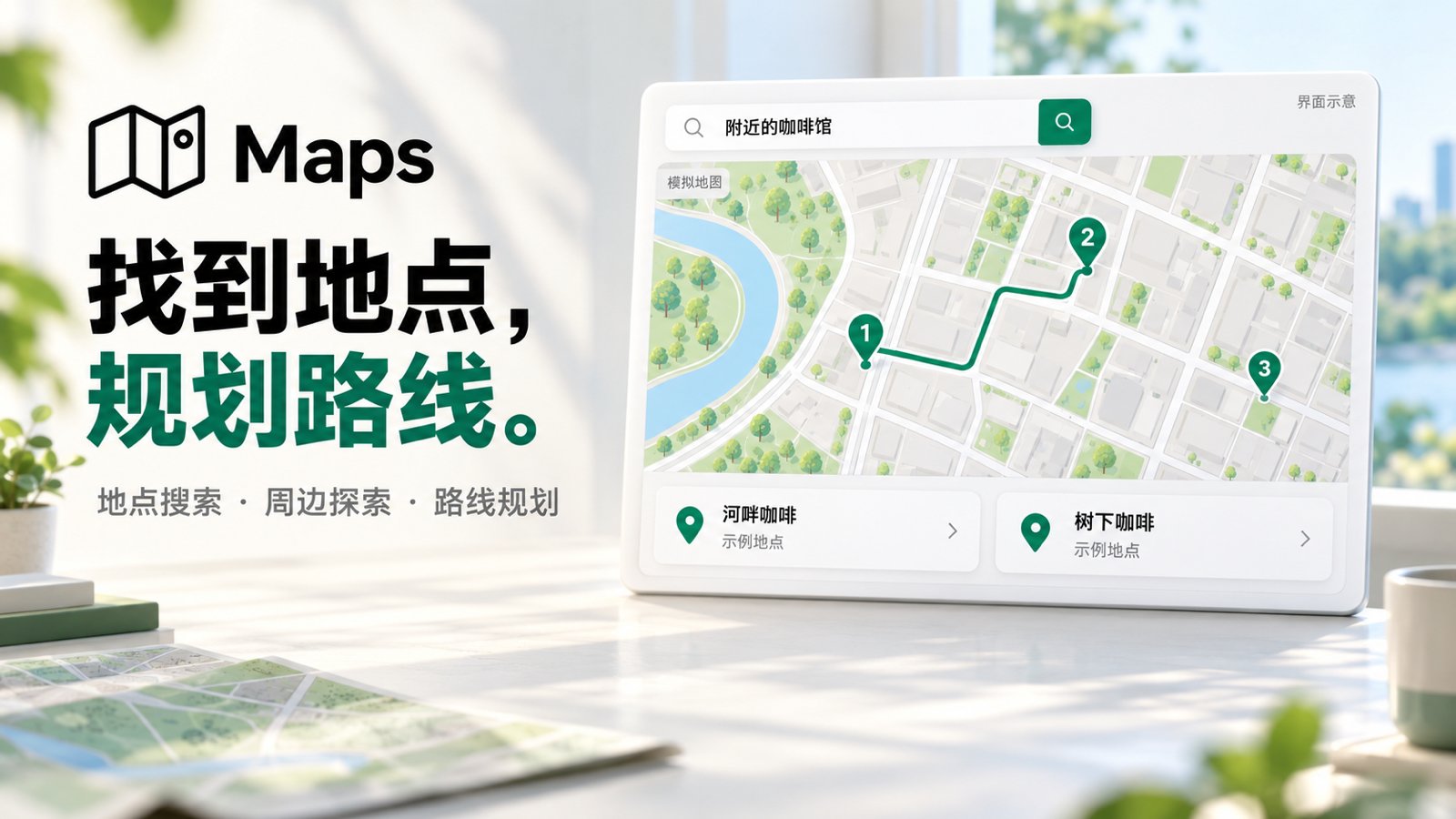
Core capabilities
Get started
An administrator enables the app and grants access, configures a primary model, and connects and authorizes AMap or Tencent Maps in the app workspace. AMap is the default; the Assistant configuration determines the provider. Live maps require the provider’s Web Service Key and available place, static map and route service quotas.- Specify the area. Open the Maps Assistant, provide a city, place or clear area, and describe what you want to find.
- Explore results. Select map markers or result cards. Pan the map and use Search this area when needed.
- Inspect places. Verify addresses and provider-supplied details while comparing candidates.
- Plan a route. Select Get directions, choose two different places from the results as endpoints, select walking or driving, then use Plan route.
- Continue the conversation. Use Reference in chat to add the place to your draft, then add a question and send it.
Find a few cafés near West Lake in Hangzhou and show them on the map. Once I choose two places, help me find a walking route between them.You can also search directly in the map workbench. The Assistant does not automatically infer your location; provide an area when the city or position is unclear.
Live maps and simulated previews
The standard app entry uses live maps. Simulated previews use the separate Maps Demo Assistant template and cannot be used for real navigation. Failed live requests do not fall back to simulated results.
Scope and limitations
- Maps provides search and route viewing. It does not track live location or save favorites and persistent itineraries.
- Place details depend on what the provider returns. Routes currently support walking and driving.
- The map image refreshes after panning or zooming, so service responses can introduce a brief delay. If search fails, check the area, connector authorization and service quota before retrying.